Try it without signing up: how the PlanitExo sandbox works
Trying out production planning software is usually a long road: a form, a call-back, scheduling a slot, then an hour-long demo where someone else does the clicking. By the time you could actually get your hands on the system, the interest is often gone. We turned it around: experience first, data later.
That's why try.planitexo.com has no sign-up. A nickname is enough, the system loads right away, and a short guided tour walks you through scheduling an order. It takes a few minutes.
A full-size plant with made-up data
The sandbox isn't a three-row sample table. You see the plan of an automotive plastics plant: 55 resources, 30 items with routings, 100 orders, a month of injection-moulding capacity filled to roughly 80%. The data is fictional, but the load is what you'd see in a real plant.
Every visitor gets their own tutorial order: 500 pieces of a “Tutorial lamp housing” that you schedule yourself during the tour.
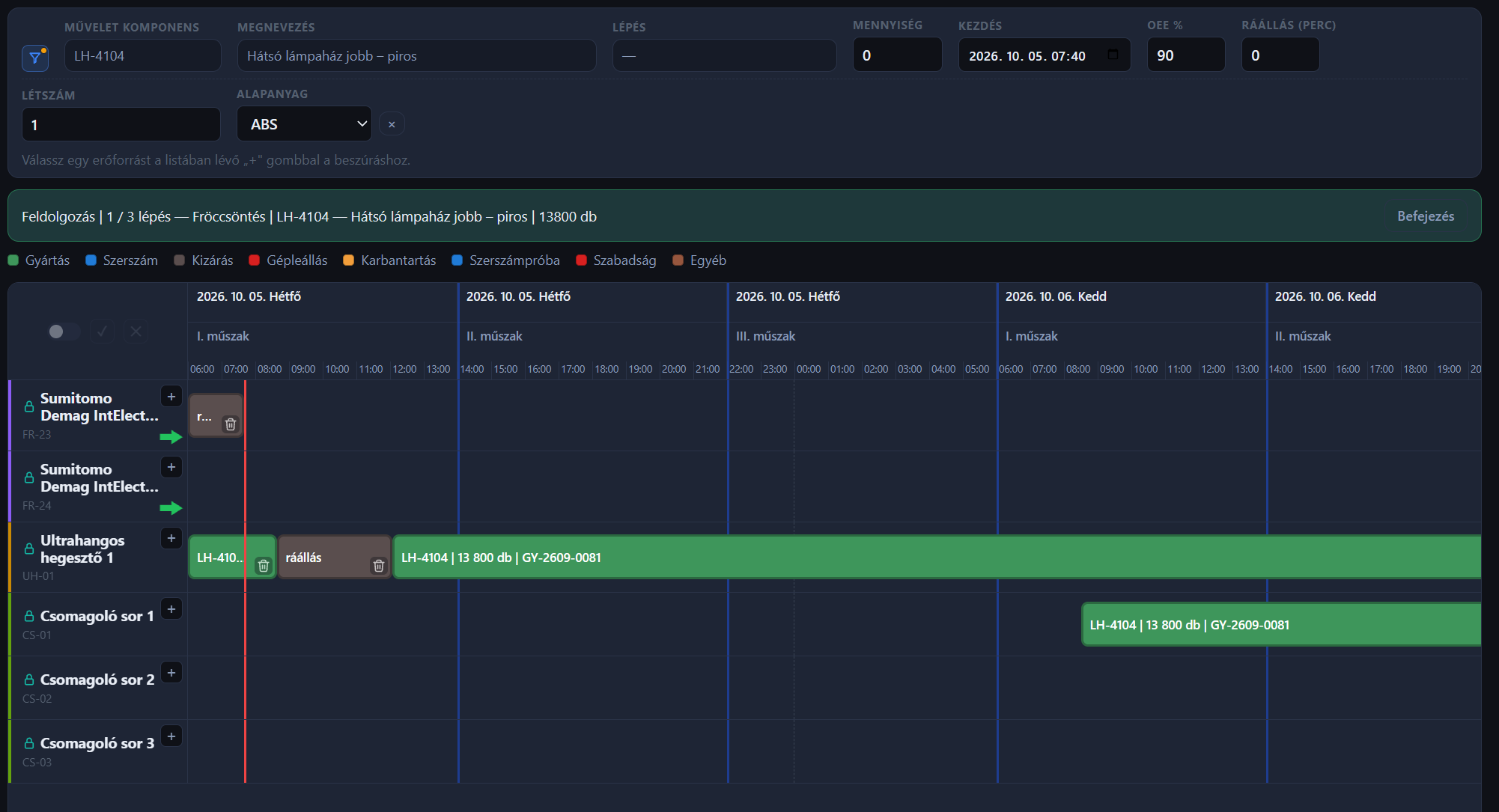
What you do during the tour
- Order backlog. On the left is the order list, which in production comes from your ERP or Excel. It's filtered to your own order.
- Start processing. The ▶ button starts scheduling, and the system walks you through the item's routing step by step: moulding first, post-processing next.
- Where can it go? A green arrow marks the machines the current step can run on according to the routing, each with its own cycle time.
- Fine-tuning. The + button places a “ghost block” on the board. You can set the start, the expected OEE (lower OEE means a longer block) and the changeover time; the ghost block shows the change instantly.
- Insert. The ✓ button commits the block to the plan. Jobs behind it shift back automatically, and the block skips weekend downtime and maintenance.
- Post-processing. The second step, deburring, works the same way.
- Rescheduling. Any block can be dragged elsewhere, with a confirmation before saving.
- Block data and totals. Blocks carry the company's own fields (such as headcount or material), and the header totals them per shift. The weekly plan can be exported to Excel.
Each step has a short “Details” section you can expand. It never navigates away, so the tour doesn't lose its thread.
The plan belongs to the planner
PlanitExo is not an automatic scheduler, and that's deliberate. Post-processing, staff availability or a rush order are shop-floor realities an algorithm rarely sees accurately. Fixing an auto-generated plan afterwards is often more work than planning it well by hand. So the system's job is to show the options, calculate the times and protect you from mistakes. The decision stays with the planner.
After the tour
At the end, leave an email address and you can keep exploring the production planner and the project-based planner freely until midnight. Your work is kept, and the link in the email brings you back from another computer too. We don't send newsletters. The tour can be restarted at any time.
If you'd like to see it with your own data, you can request a dedicated 30-day demo: your resources, items and orders, with your own fields. Efficiency measurement (OEE) and the shop-floor tablet are available there; in the sandbox menu they carry a “D” badge.
Good to know
- The sandbox is shared: other visitors may see what you do. Don't enter real company data.
- It resets every night at midnight (Budapest time).
- The planner is built for large screens; it works best on a laptop or desktop.
- Available in Hungarian and English.